Entering a Query
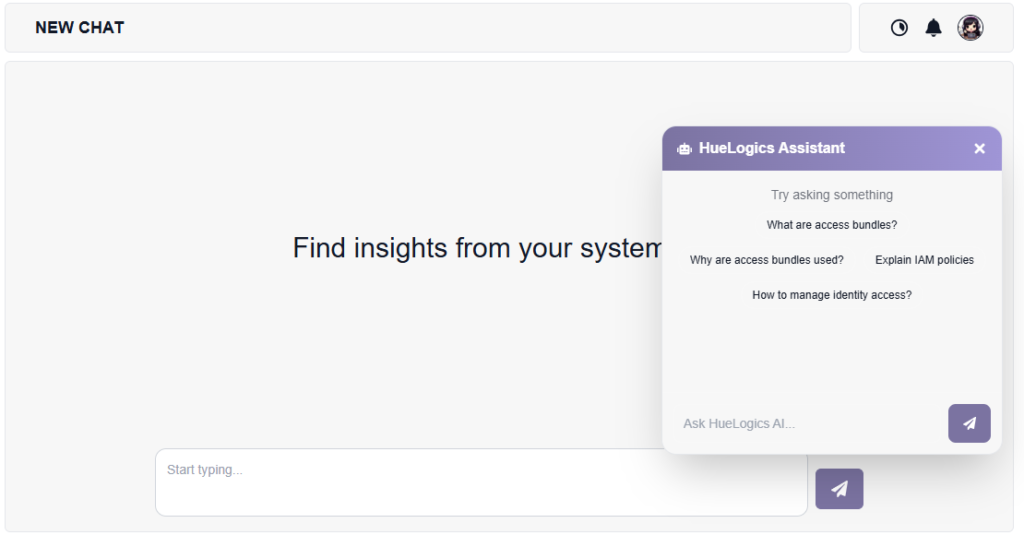
The New Chat feature allows users to interact with the system and retrieve insights from system logs or user data using simple English queries.
How to Enter a Query #
Follow these steps to ask a question:
- Navigate to the Chat Screen.
- Locate the Query Box at the bottom of the screen.
- Type your query in simple English. Examples:
- “Give me a report on last week’s logs.”
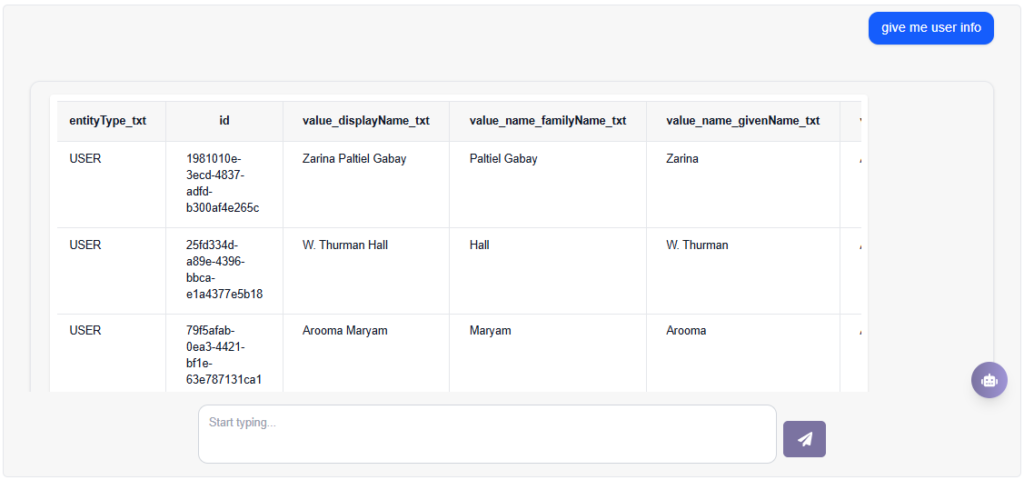
- “Give me user info.”
- Press Enter or click the Send icon to submit your query.
Viewing Results #
- Once the query is submitted, the system processes the request.
- The results are displayed in a structured format, such as a table.
Additional Actions #
Users can perform the following actions on the query:
- Copy Query – Easily copy the entered prompt for reuse.
- Edit Query – Modify the existing query as needed.
- Save Changes – Save the updated query for future reference.
Requesting Data in Different Formats #
Users can also customize the output format by specifying it in the query.
Example:
- “Give me user info in JSON format.”
The system will then return the data in the requested format (e.g., JSON).
Chat Assistant (Floating Chatbot) #
On the New Chat page, users can access a floating chatbot assistant for quick help.
How it Works: #
- A chatbot icon is visible on the screen
- Click the icon to open the chatbot popup
- The assistant window will appear
Usage: #
- Users can ask any question directly in the chatbot
- Example questions:
- “What are access bundles?”
- “How to manage identity access?”
- Press Send to get instant responses